![vali logo_FINAL-2-08-2.png]](https://support.valicyber.com/hs-fs/hubfs/vali%20logo_FINAL-2-08-2.png?height=40&name=vali%20logo_FINAL-2-08-2.png)
For ZeroLock Management Console versions before v5, please use this link.
User Roles are assigned using the ZeroLock Management Console (ZMC). The User Role controls user permissions. Only one User Role can be assigned to a user ID.
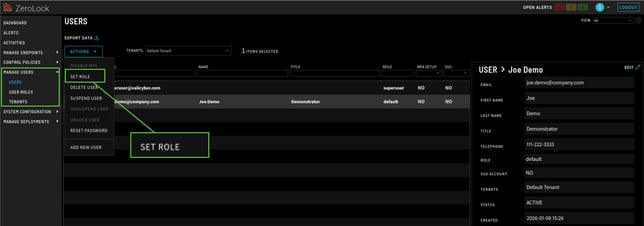
- On the Manage Users > Users page, select the user to be assigned a User Role by checking the box beside their name. Click the Actions dropdown menu and Set Role.
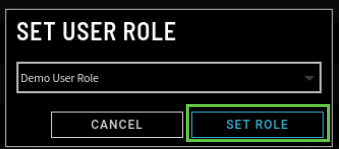
- Using the Set User Role drop-down menu, select a role. Then click Set Role.
- You can verify the assigned User Role from the Users page.
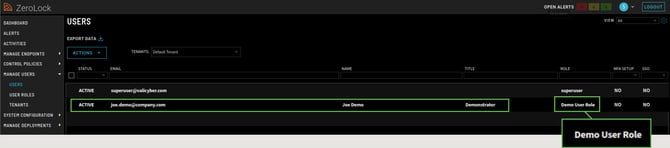
You have successfully assigned a role to a user.