![vali logo_FINAL-2-08-2.png]](https://support.valicyber.com/hs-fs/hubfs/vali%20logo_FINAL-2-08-2.png?height=40&name=vali%20logo_FINAL-2-08-2.png)
For ZeroLock Management Console versions before v5, please use this link.
Overview
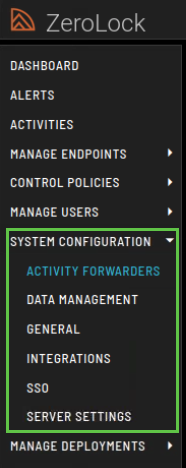
From the dashboard, selecting System Configuration takes you to an access point for six (6) separate sections:
|
|
|
Activity Forwarders
ZeroLock provides seamless integration with external Security Information and Event Management (SIEM) platforms through its Activity Forwarder feature. This capability enables ZeroLock to securely transmit activity logs, including alerts, user actions, and endpoint activity events from protected endpoints to a centralized logging or monitoring system.
By forwarding this data, organizations gain enhanced visibility, improved event correlation, and support for compliance requirements. You also have the flexibility to:
- Send only alert data, if preferred.
- Filter alerts by severity level, ensuring that only the most relevant information is transmitted.
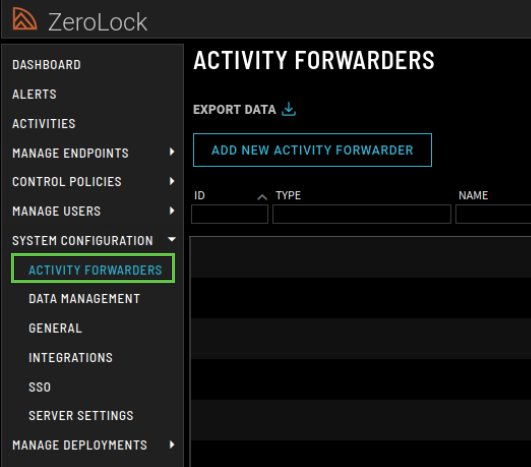
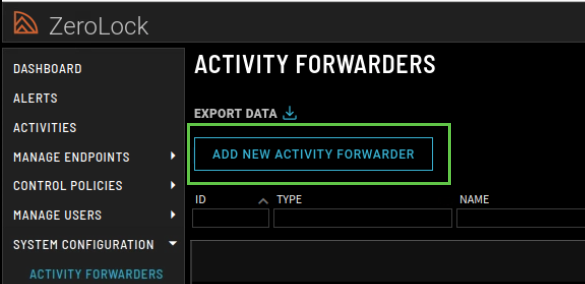
Add New Activity Forwarder: By configuring an Activity Forwarder, administrators can ensure that ZeroLock security telemetry is included alongside other infrastructure and security data, enabling faster investigation, improved incident response, and alignment with organizational monitoring standards.
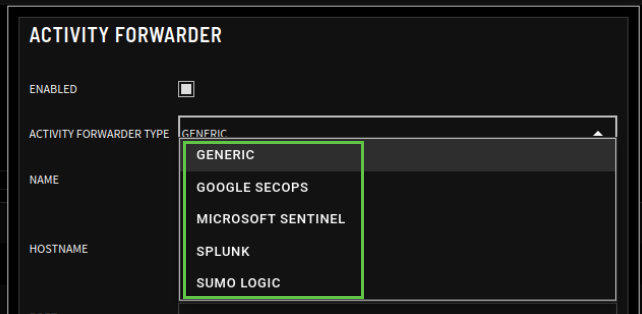
Pre-Defined Forwarder Types: ZeroLock includes five predefined forwarder templates for commonly used SIEM platforms. These templates simplify integration by providing built-in configurations for:
- Generic
- Google SecOps
- Microsoft Sentinel
- Splunk
- Sumo Logic
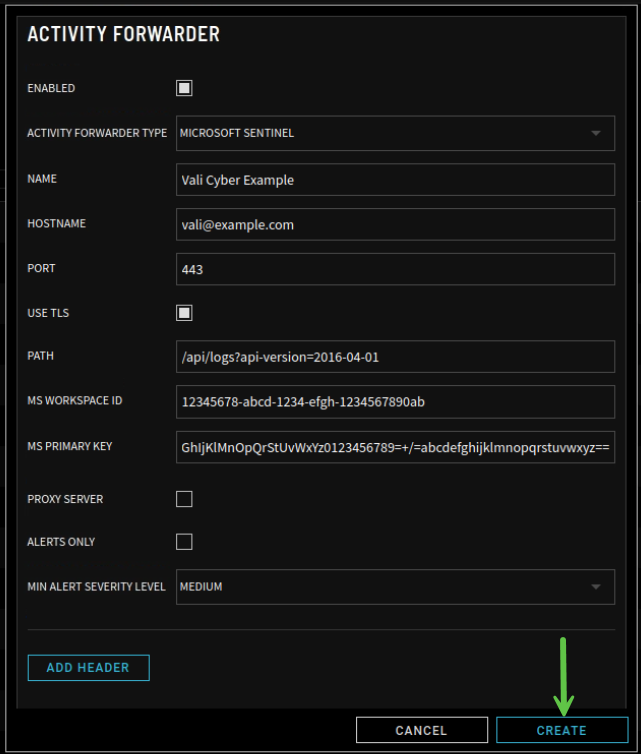
Example - Activity Forwarder Configuration (Microsoft Sentinel): This screen shows the configuration required to integrate ZeroLock with Microsoft Sentinel. When this forwarder type is selected, ZeroLock sends activity and alert data directly to an Azure Log Analytics workspace used by Sentinel.
Data Management
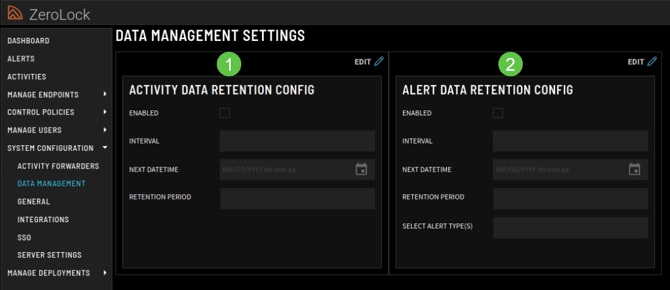
This section provides options to manage backups and control how long data is retained within the console. It includes two key configurations:
- Activity Data Retention Config: Lets admins schedule and manage the retention period for activity logs to control storage and compliance.
- Alert Data Retention Config: Provides options to schedule and configure how long alert data is kept before being purged.
Activity Data Retention Config
The data is information on the activities occurring on an endpoint. It is reached by selecting an endpoint, then double-clicking anywhere along its row.
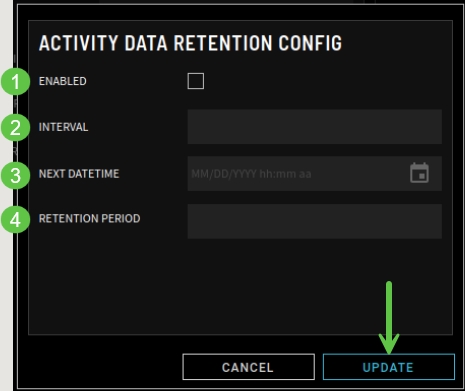
- Enabled – If the box is white, backup is enabled.
- Interval – Options are Hourly, Daily, Weekly, or Monthly.
- Next DateTime – The next scheduled backup.
- Retention Period – The time in months that the data is to be retained. The options are to keep the data for the:
- Last 6 months
- Last 3 months
- Last month
- Last Week
- Last Day
Selecting UPDATE confirms the edits/configuration.
********************
Alert Data Retention Config
The data is information on all alerts that have occurred on the endpoint(s). It is reached from the ALERTS page.
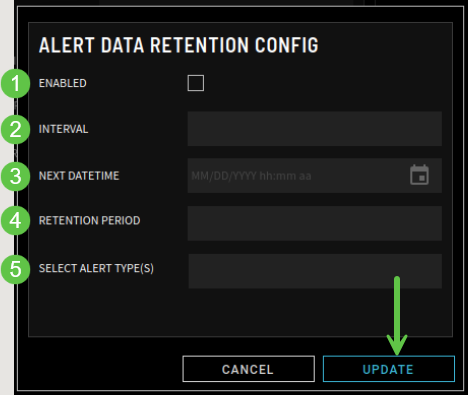
- Enabled – If the box is white, backup is enabled.
- Interval – On enabling retention of Activity Data, the drop-down menu is activated. The menu offers four (4) interval options: Hourly, Daily, Weekly, and Monthly.
- Next DateTime – This feature allows the scheduling of when the backups will begin. The format is mm/dd/yyyy and hh:mm (a|p)m.
- Retention Period – The time in months that the data is to be retained. The options are to keep for the:
- Last 6 months
- Last 3 months
- Last month
- Last Week
- Last Day
- Select Alert Type(s) – There are 8 options:
- Cryptojacking
- File Access
- Hash
- Network Access
- Program Execution
- Ransomware
- SSH-MFA
- Tampering
Note: If the Select Alert Type field is left blank, the system will automatically add all eight (8) types to be deleted.
Selecting UPDATE confirms the edits/configuration.
General (Settings)
This section contains 2 sections:
- Date/Time Display Preferences
- General
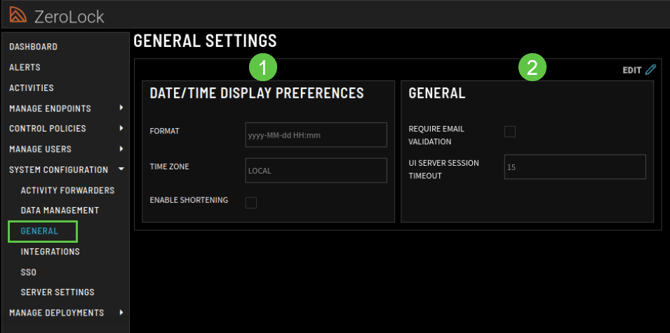
- Date/Time Display Preferences
- Format – how the date and time will display.
- Time Zone – the options are LOCAL or ZULU.
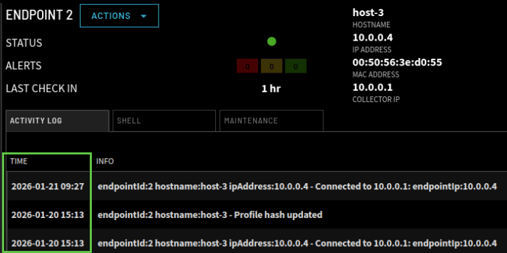
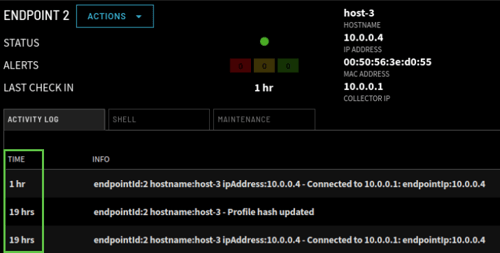
- Enable Shortening – if the checkbox is white, the timestamps displayed in some tables will switch to an “ago” format where the user is shown how much time has passed since the event occurred, rather than the timestamp of the event itself.
- For example, the Activity Log tracks every user’s activity and has a default time setting of yyyy-MM-dd HH:mm.
- However, if Enable Shortening is selected, only the number of seconds, minutes, or hours since the activity occurred is displayed.
- For example, the Activity Log tracks every user’s activity and has a default time setting of yyyy-MM-dd HH:mm.
-
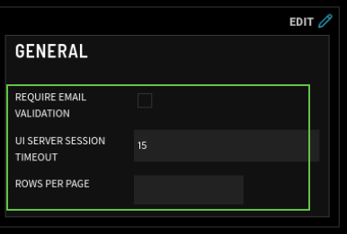
General
- Require Email Validation – if the checkbox is white, it is enabled. Email validation is a method of determining whether an email address is reachable and valid. It also verifies whether a specific email address is associated with a reputable domain.
- UI Server Session Timeout – the options are 5, 15, or 30 minutes.
- Rows Per Page – sets the default number of rows per grid. For example, the number of alerts or endpoints.
Integrations
This section allows you to configure how ZeroLock connects with external services. There are three main integration types:
- Email: Configures SMTP settings, including server, port, credentials, TLS, “From” address, and a test‑email button to validate email alerts.

- Veeam API: Sets up integration with Veeam backup infrastructure by defining host, port, credentials, and includes a test connection feature.
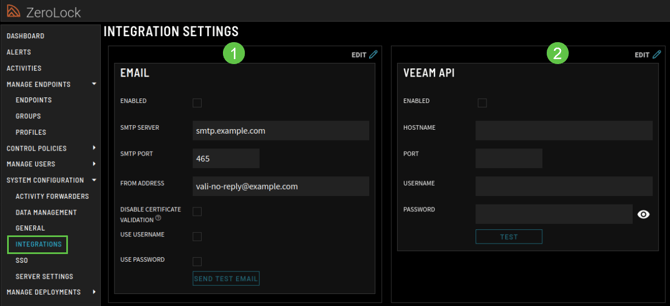
This section is for configuring the ZMC to send alert emails.
- Enabled – if the checkbox is white, sending an email is enabled.
- SMTP Server – the name of the SMTP (Simple Mail Transfer Protocol) server.
- SMTP Port – the assigned port for SMTP.
- From Address – the email address sending the Alert.
- Disable Certificate Validation – when selected, the application will ignore TLS/TSS certificate validation errors, allowing connections to servers with self-signed, expired, or otherwise invalid certificates.
- Use Username – if box is white, a username is required.
- Use Password – if box is white, a password is required.
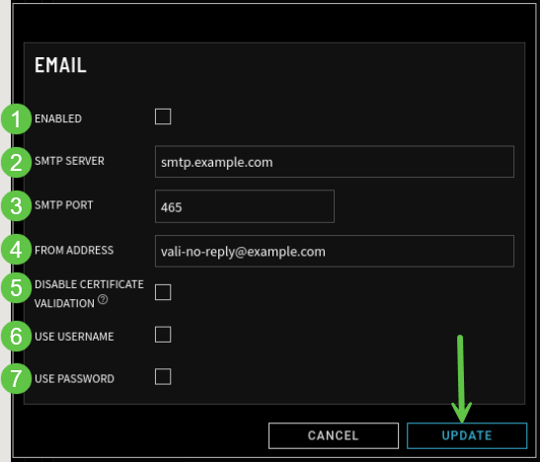
Selecting UPDATE confirms the edits/configuration.
********************
Veeam API
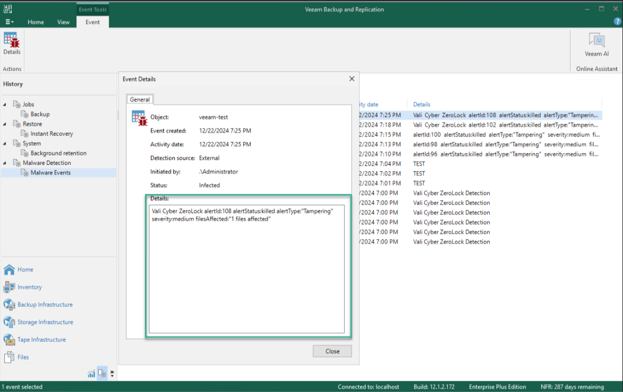
ZeroLock supports sending alert activity data to the Veeam API integration. This functionality enables Veeam to detect when an alert is generated and identify potentially affected VMs. This information can then be used to assess the validity of VM backups.
This section configures the communication between ZMC and the Veeam server.
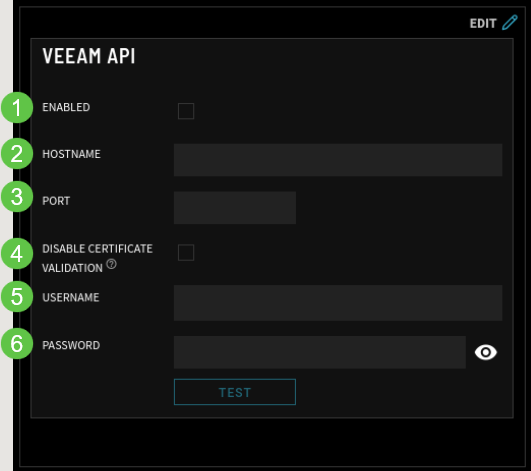
- Enabled – When the box is checked, Veeam API integration is activated.
- Hostname – of the VEEAM server.
- Port – port used to communicate.
- Disable Certification Validation – When selected, the application will ignore TLS/SSL certificate validation errors, allowing servers with self-signed, expired or otherwise invalid certificates.
- Username – Name of the user who has the Incident API User role.
- Password – User’s password.
This is an example of the alert activity data sent to the VEEAM server.
_________________________________________________________________________________________________
SSO
The administrator uses the configuration values in this section to configure the ZeroLock Server application (ZeroLock Management Console) for your SSO IDP (Identity Provider). The entries below are for example only and will not be the same for each client/organization.
- Service Provider Config: Defines the SAML Service Provider settings used for Single Sign-On, including entity ID and Assertion Consumer Service URLs for managing authentication.
- Identity Provider Config: Stores settings for the SAML Identity Provider used by the console, such as issuer, and the login/logout URLs and certificate for SSO.
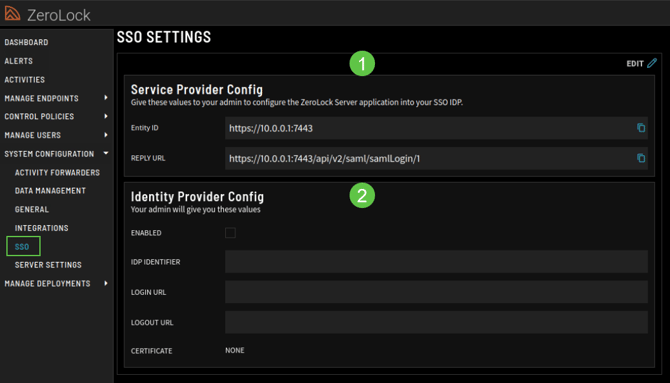

- Entity ID– is a globally unique name for a SAML (Security Assertion Markup Language) entity, i.e., your Identity Provider (IdP) or Service Provider (SP).
- Reply URL – is the location where the authorization server sends the user once the app has been successfully authorized and granted an authorization code or access token.
Identity Provider
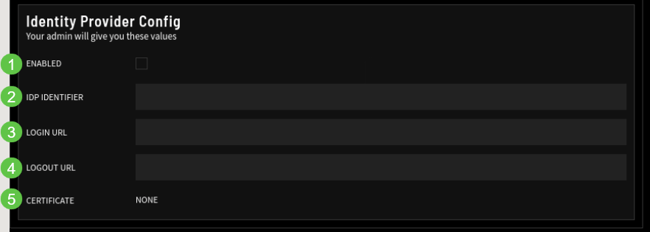
- Enabled - When enabled, the Identity Provider will provide the values required.
- IDP Identifier – is the name of the identification provider. The IDP is a service that stores, creates, and manages digital identities. In other words, it offers user authentication- as-a-service.
- Login URL – the locator of a resource. This is used to locate the address of a resource on the Internet.
- Logout URL – sends a logout request to the OAuth provider to log out from the provider while logging out the user from the application.
- Certificate – represents that a certificate authority has verified that the web address belongs to the organization. If you have a certificate, you click Select File, which opens the file location of the certificate.
Server Settings
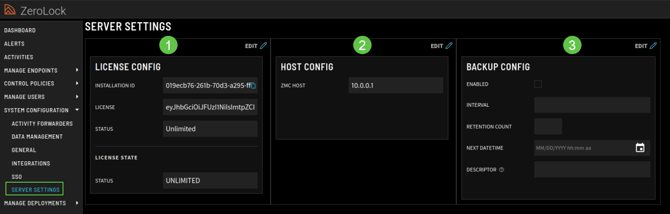
There are show two configuration sections within Server Settings that control how the ZeroLock Management Console operates.
- License Config: The License Config consists of four (4) fields:
- Installation ID - The identifier for this installation. Provide it to Vali Cyber when requesting a license.
- License - The installed license data.
- Status - Shown instead of limits when the license is unlimited.
- License State - section shows the live status and usage.
- Host Config: This section defines the API host address used by the ZeroLock Management Console. This value should be set to the IP address where the ZMC is running. The ZeroLock API service runs alongside the ZMC on the same system, so the API host uses the same IP address as the ZMC. A correct configuration is required for proper system communication and integration.
- Backup Config: This section is used to configure automated backups of the ZeroLock database. Administrators can enable scheduled backups, define the backup interval, set how many backups are retained, and specify the next run time. The descriptor field helps identify the purpose of the backup. This ensures configuration and security data can be recovered if needed.
NOTE: The Backup Config is only accessible to the Superuser account, as it contains a full database backup rather than tenant-specific data.
This completes the introduction to the System Configuration section of the ZeroLock® Management Console.