![vali logo_FINAL-2-08-2.png]](https://support.valicyber.com/hs-fs/hubfs/vali%20logo_FINAL-2-08-2.png?height=40&name=vali%20logo_FINAL-2-08-2.png)
For ZeroLock Management Console versions before v5, please use this link.
The User Role feature enables administrators to efficiently manage users by assigning them to groups (roles) instead of granting permissions to specific sections of the ZMC environment.
On the ZMC, select Manage Users, then User Roles. Select the role that you want to configure. The User Role settings screen will appear on the right. The options available will depend on the User Role selected. The Superuser’s only option is Duplicate. The default role’s options are Duplicate and Edit. All other roles will have the Duplicate, Edit, or Delete options. The check boxes in the sections will be greyed out.
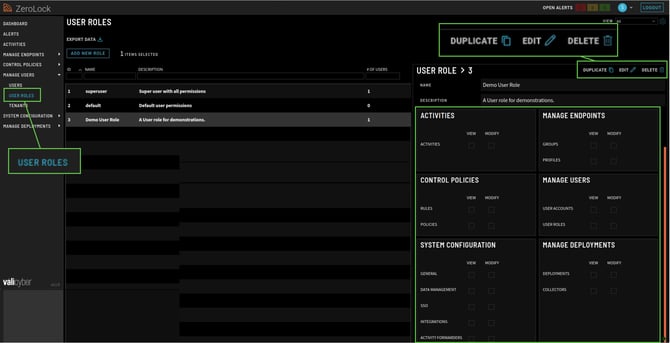
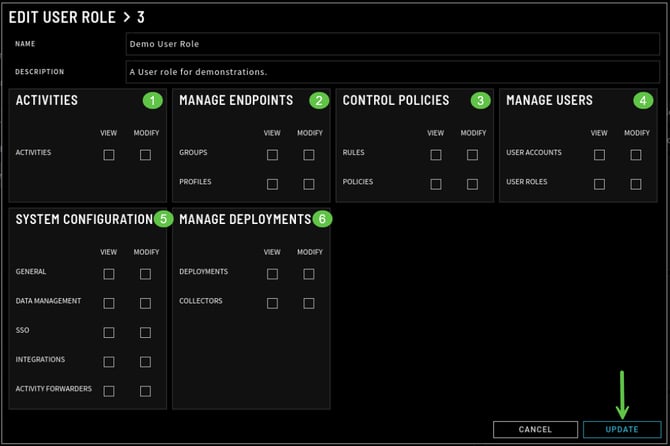
Selecting Edit opens the Edit User Role screen. The number following is the number of the role being edited.
The screen consists of fields for the User Role name and description, followed by six (6) sections used to configure what someone with that User Role may modify and view.
Clicking the Modify or View column heading will select all the boxes in that column. When editing is done, select UPDATE to apply the changes.
When creating multiple roles with slightly different permissions, without having to manually set the same permissions for each role, using DUPLICATE is a great time saver. Once the changes have been made, rename the role and select CREATE.
Selecting Duplicate instead of Edit creates a copy of the current user role with a placeholder name consisting of the current role name with 'copy' appended to it. The duplicate of 'Demo User ' would be 'Demo User copy', for example.
Setting User Permissions
Possible user permissions are Modify and View.
- Modify enables the user to make changes in the assigned section of the ZMC and view the changes.
- View alone only permits the user to view the settings for a ZMC section. The options to duplicate, edit, and delete are not available.
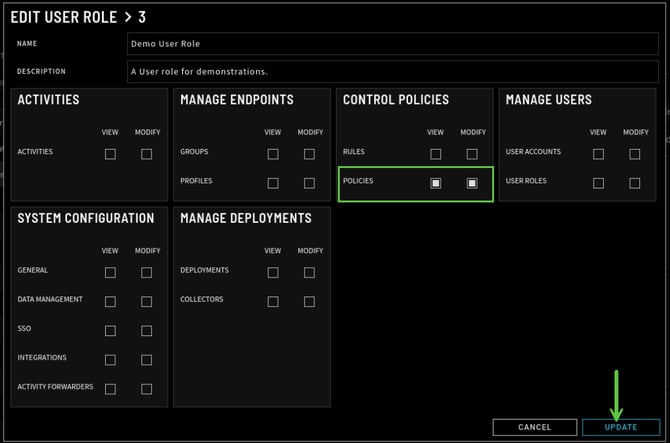
Below, the administrator has permitted the Demo User Role to modify Control Policies by selecting the corresponding checkbox. When you select Modify, View is automatically selected.
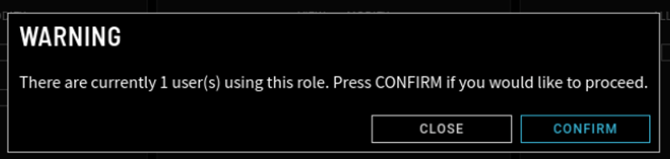
After selecting UPDATE, a warning may appear if a user has been assigned to this role, requiring you to CONFIRM before proceeding.
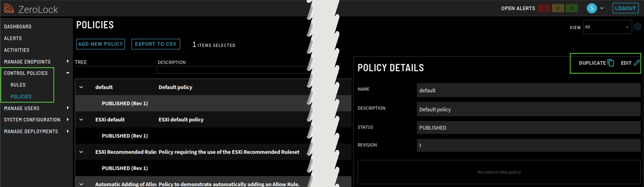
- Modify - For a user with modify permission for Control Policies, the image below is what they will see when viewing Control Policies. As this is a Default policy, only Duplicate and Edit are available. Items greyed out are those for which the User Role does not have permission to alter.
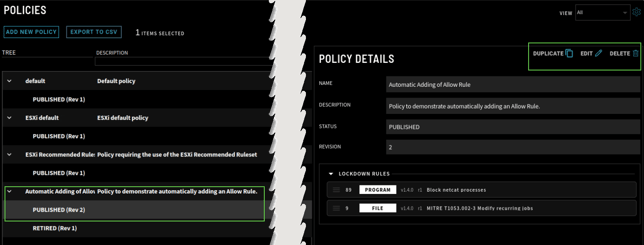
For policies other than default, the options will include Delete, as shown below.
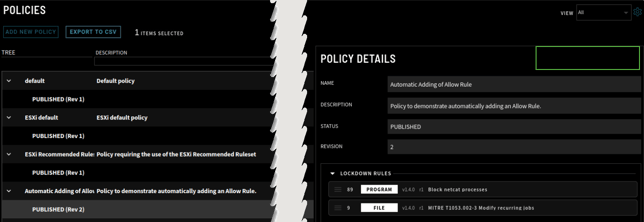
- View - The image below shows what a user with only view permission for Control Policies sees. The option to Duplicate, Edit, and Delete is absent.
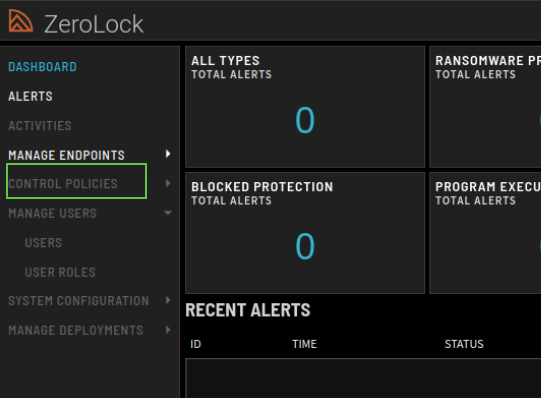
- Neither - A user with neither Modify nor View permissions will have the Control Policies section greyed out and unable to access it.
ZeroLock Management Console Sections
There are six (6) sections of the ZMC that User Roles may configure permissions for.
- Activities
- Control Policies
- System Configuration
- Manage Endpoints
- Manage Users
- Manage Deployments
Activities - Provides access to the Activity Logs section on the Dashboard.
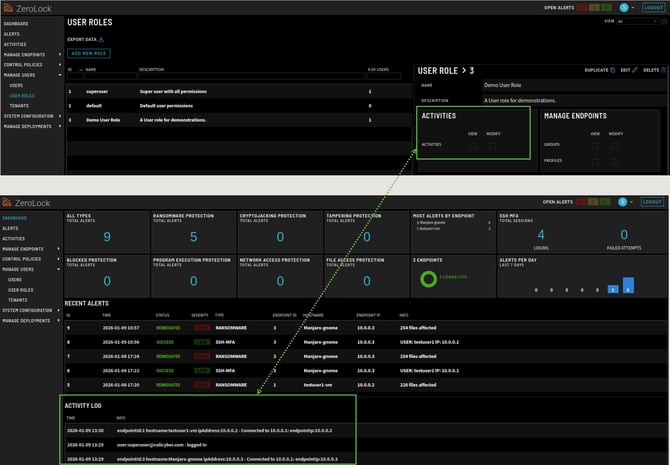
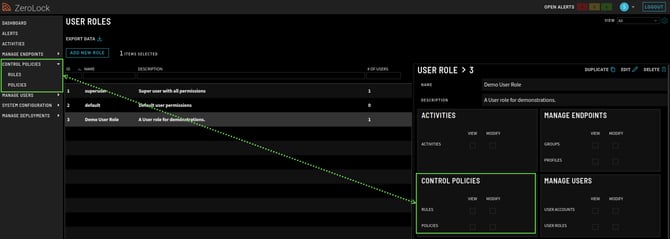
Control Policies - Provides access to Rules and Policies.
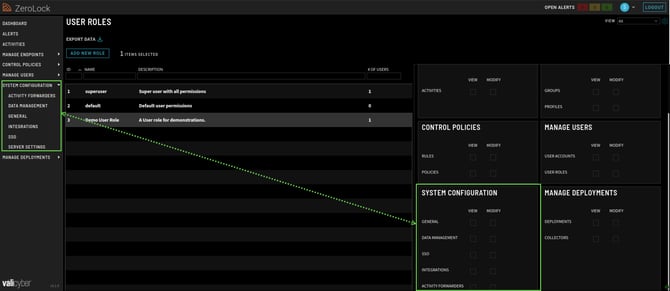
System Configuration - Provides access to the System Configuration settings page. Depending on the permissions (View and/or Modify), this role enables configuring five areas: General, Data Management, SSO (Single Sign On), Integrations, and Activity Forwarders.
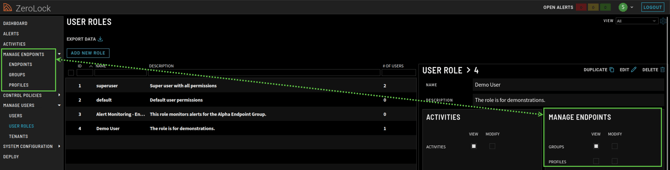
Manage Endpoints - Provides access to endpoints, endpoint groups, and endpoint profiles.
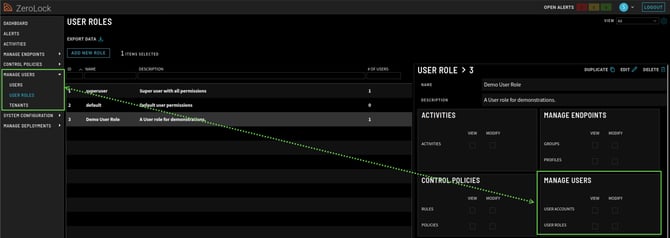
Manage Users - Provides access to the User accounts, User roles, and Tenants pages.
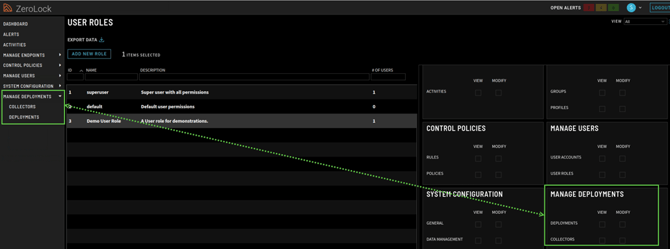
Manage Deployments - Provides access to the Agent Deployments and Collectors pages.
That concludes your introduction to User Role settings.