![vali logo_FINAL-2-08-2.png]](https://support.valicyber.com/hs-fs/hubfs/vali%20logo_FINAL-2-08-2.png?height=40&name=vali%20logo_FINAL-2-08-2.png)
ZeroLock Management Console Overview
The ZMC is a centralized, browser-based platform for managing and monitoring ZeroLock agents deployed across virtual environments. Key functionalities include viewing protected endpoints and their protection status, configuring ransomware and tampering protection policies, deploying and managing agents, reviewing alerts and logs, and managing system settings and integrations. The interface is designed to be intuitive for both experienced and new administrators.
Dashboard Structure
The home screen, called the Dashboard, offers a comprehensive view of system health, alerts, and user activity. It consists of:
- Banner: User account management and system alerts access.
- Open Alerts: Immediate alert access categorized by severity.
- User Profile: Displays logged-in user information with options for account management, password changes, MFA configuration, and help resources.
- Logout: Secure session termination.
- Status Tiles: Twelve (12) dynamic tiles provide real-time insights into overall alerts, active threat categories (ransomware, cryptojacking, tampering attempts, blocked executables), behavioral monitoring (program execution, network access, file access), and operational metrics such as alerts per endpoint and CLI MFA login results.
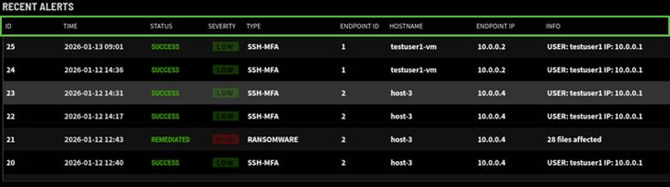
- Recent Alerts: Displays recent security events with detailed columns including alert ID, timestamp, status, severity, type, affected endpoint details, and contextual information.
- Activity Log: Chronicles all user and endpoint actions with timestamps and summaries such as login attempts, endpoint connections, SSH sessions, configuration changes, and password resets.
Alerts Management
The Alerts page enables monitoring and managing security events detected by ZeroLock agents. It offers:
- A real-time, severity-categorized alert list.
- Key alert details such as type, time, affected endpoint, and severity.
- Interactive actions including Kill, Release, Archive, or Delete.
- Filtering and sorting capabilities.
- Access detailed alert information for in-depth investigation.
Activities Overview
The Activities tab consolidates system activity logs encompassing endpoint events, user actions, agent events, and security alerts. It includes:
- Endpoint activity logs with details on agent check-ins, policy enforcement, blocked actions, and system integrity.
- User operations tracking administrative actions like password resets, role changes, MFA toggles, and login attempts.
- Agent deployment and update logs showing installation events and version changes.
- Security alerts generated from policy violations or suspicious behavior.
- Timestamped entries with metadata such as hostname, policy ID, and agent version to facilitate filtering and incident response.
- Options to export activity data in CSV format for audit purposes or forwarding to SIEM systems.
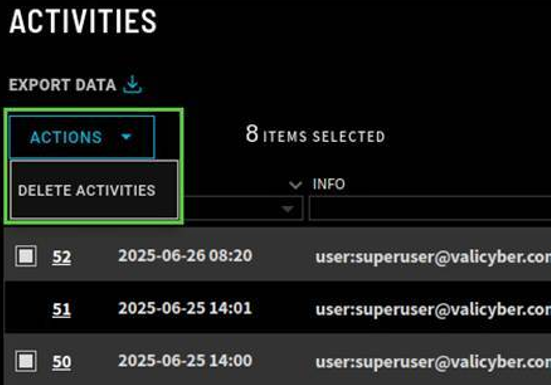
- An Actions menu allowing bulk deletion of activity entries to maintain an organized log feed, with filtering features for improved readability.
Endpoint Management
The Endpoints page serves as the control center for all protected systems, displaying monitored endpoints with details such as ID, status, alerts, hostname, IP address, last check-in, and agent version. Visual status indicators use color codes to reflect connectivity and protection status. Administrators can perform actions including setting endpoint profiles, archiving, activating or deactivating protection, and enabling alert-only mode.
Endpoint Groups allow management of access and visibility by assigning user roles and permissions, with easy creation of new groups.
Endpoint Profiles define agent behavior on endpoints, covering security settings, response policies, logging, SSH options, and caching. Profiles can be customized and assigned to ensure consistent security policies across the environment.
Endpoint Profile Features
Endpoint Profiles include controls for:
- Ransomware and cryptojacking protection with configurable alert levels and automated responses.
- Tampering protection against modifications to agent files and rules.
- Hash rules to allow or block executables by SHA256 hash.
- CLI Multi-Factor Authentication to restrict SSH access.
- Default control policies for lockdown rules.
- Logging configurations for agent logs.
- Remote shell access settings.
- Precision Mode for targeted process monitoring on Linux systems.
- ESXi-specific process monitoring and remediation.
- Cache settings for file change storage and retention.
Control Policies and Rules
Control Policies enforce security actions via lockdown rules that monitor system behavior, such as program execution, file, and network access. The seven rule types include:
- CLI-MFA for SSH multi-factor authentication.
- Hash rules to allow/block executables.
- Canary files to act as decoys to detect ransomware.
- File Access rules to regulate file operations.
- Network Access rules to control network connections.
- Program Execution rules to manage allowed processes.
- Ordered Ruleset that evaluates multiple rules sequentially.
Policy Management
Policies are collections of lockdown rules defining agent enforcement on endpoints. The ZMC includes default policies for Linux and ESXi endpoints, with the latter requiring duplication for customization. Policies have lifecycle states:
- Draft: For tuning and testing without enforcement.
- Published: Actively enforced in production.
Policies must be promoted from draft to published and then assigned to Endpoint Profiles to be applied to endpoints. This separation allows reuse and flexible management. New policies can be created with customizable rules and exported to CSV for audit purposes.
User and Tenant Management
The Manage Users section centralizes user account administration, role-based access control, and tenant configurations. It is divided into:
- Users: Manage individual accounts with options to disable MFA, assign roles, delete, suspend, unlock accounts, reset passwords, and add new users.
- User Roles: Define permission profiles controlling feature access; roles can be customized, duplicated, edited, or deleted.
- Tenants: Represent organizational units or customer environments enabling logical separation of users, endpoints, and configurations. Tenants support unique SSO, domain settings, user roles, lockdown rules, and endpoint profiles, suitable for multi-tenant deployments like MSPs or enterprises.
Users with multi-tenant access can switch between tenants via the interface dropdown.
System Configuration
The System Configuration tab provides centralized management of six core areas essential for security and management of the environment:
- Activity Forwarders: Integrate with external SIEM platforms by forwarding activity logs and alerts. Configurable to send all or filtered alert data by severity. Predefined templates support common SIEMs like Google SecOps, Microsoft Sentinel, Splunk, and Sumo Logic.
- Data Management: Controls backup schedules and retention periods for activity and alert data to balance storage and compliance.
- General Settings: Customize date/time display formats, time zones, session timeouts, and email validation requirements.
- Integrations: Configure SMTP email settings, Veeam API integration for backup infrastructure, and SAML-based Single Sign-On with service and identity provider configurations.
- Server Settings: Manage automated database backups and define the API host address for ZMC communication and integration.
Deployment Management
The Manage Deployment tab focuses on agent deployment through:
- Collectors: Systems that receive endpoint data before storage or forwarding, usually the same host as the ZMC. Multiple collectors can be deployed for scalability.
- Deployments: Define deployment configurations, including environment type (default, ESXi, air-gapped), agent version, endpoint profile, and groups. Alert-Only Mode can be enabled for policy validation without blocking.
- Actions: Upload new agent versions, add or delete deployments, and select collectors for deployment communication.
Overview of the ZMC Interface
This section is designed to walk you through the entire ZMC interface and help you become familiar with all its features and capabilities. It provides a detailed look at each area of the console so you can understand what ZeroLock can do and where to find key tools and settings.
It’s important to read through this section carefully and learn where everything is located. For the best experience, we recommend going through this walkthrough while logged into the ZMC so you can follow along and explore the interface in real time. This hands-on approach will help reinforce your understanding and make it easier to navigate the console with confidence.
The ZMC provides a centralized, browser-based interface for managing and monitoring ZeroLock agents across your virtual infrastructure. Once logged in, administrators can:
- View Protected Endpoints: See a list of all connected systems with active ZeroLock agents, including their current protection status and system details.
- Configure Protection Policies: Define rules for ransomware protection, unauthorized tampering prevention, and critical file monitoring.
- Deploy and Manage Agents: Install, update, or remove ZeroLock agents across supported hypervisors or guest systems.
- Review Alerts and Logs: Access system alerts and event logs to track security events and agent activity in real time.
- Manage System Settings: Configure server settings, security preferences, and integration options for your environment.
The interface is designed to be intuitive and responsive, making it easy for both seasoned administrators and newer users to manage endpoint security across a virtual environment.
- The Dashboard provides a comprehensive overview of system health, security alerts, and user activity. The Dashboard is divided into five main sections:
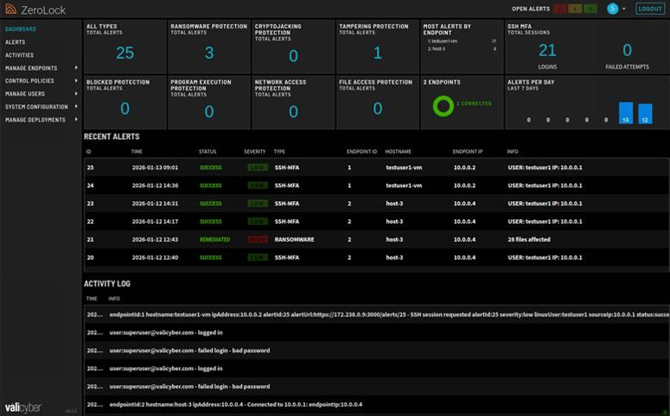
- Banner: The banner (at the top of the ZMC interface) serves as the primary user access point for account management and system alerts.

- Open Alerts: Immediate access to alerts by severity level (High, Medium, Low).

- User Profile: Displays the logged-in user (e.g., superuser) with options to manage the account, change the password, configure MFA, and to access the ValiCyber knowledge base via the Help Center quickly.
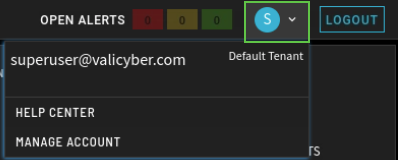
- Logout: Ends the current session securely.
- Status Tiles: The Status section of the ZeroLock Management Console gives a clear, real-time overview of endpoint activity and threat detection across the environment. It’s broken down into twelve (12) dynamic tiles, each designed to provide critical insight at a glance. Tiles structure:

- Overall Alert Count: A single tile displays the total number of alerts detected since monitoring began, offering a high-level view of system activity.
- Active Threat Categories: Four tiles focus on the types of malicious behavior ZeroLock is actively defending against:
- Ransomware
- Cryptojacking
- Tampering Attempts
- Blocked Executables
- Behavioral Monitoring: Three tiles reflect Lockdown rule alert activity related to specific system behaviors:
- Program Execution
- Network Access
- File Access
- Operational Insight: The final four tiles offer valuable operational metrics:
- Number of alerts per endpoint
- Current connection status of endpoints
- CLI MFA login results (successes and failures)
- Alert volume trends over the past 7 days
-
Recent Alerts: Alerts are triggered when ZeroLock detects activity matching defined Control Policies. The Alerts table displays the most recent entries with the following columns:
-
ID: Sequential alert identifier.
-
Time: Timestamp (yyyy-mm-dd hh:mm).
-
Status: Detected, Killed, Remediated, Success (CLI MFA), Suspended.
-
Severity: Defined by endpoint profile (Low, Medium, High).
-
Type: Classification of threat (e.g., Ransomware, File Access, CLI MFA).
-
Endpoint ID: Identifies the numerical identifier of the affected system.
-
Hostname: Identifies the Hostname of the affected system.
-
Endpoint IP: Identifies the IP Address of the affected system.
-
Info: Contextual data, such as infected file count, user/IP for SSH.
-
- Activity Log: The Activity Log provides a chronological history of all user and endpoint actions within the ZMC. Each log entry includes:
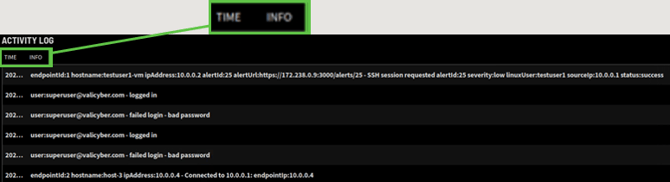
- Time: Timestamp (yyyy-mm-dd hh:mm).
- Info: Summary of the action performed, such as:
- Login attempts (success/failure)
- Endpoint connection events
- SSH sessions
- Configuration changes
- Password resets
- Navigation Menu (List of Homepages):
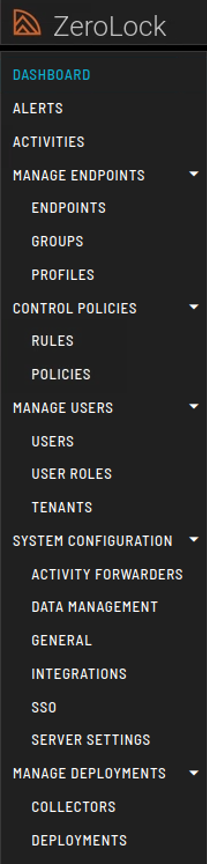
- Banner: The banner (at the top of the ZMC interface) serves as the primary user access point for account management and system alerts.
- Alerts
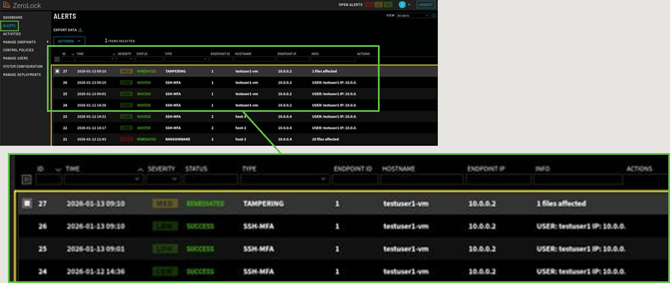
On the Alerts page of the ZMC Dashboard, you can monitor and manage security events detected across your ZeroLock-protected endpoints. This page provides:- A real-time list of all alerts categorized by severity (High, Medium, Low).
- Key details such as alert type, time, affected endpoint, and severity level.
- Interactive options to act on alerts, such as Kill, Release, Archive, or Delete.
- Filtering and sorting tools to focus on specific threat types or endpoints.
- Access to full alert details by double-clicking on any alert row for deeper investigation.
- Activities
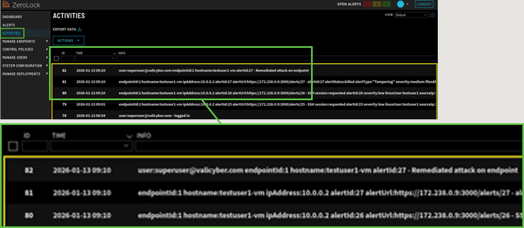
The Activities tab provides a centralized view of system activity across your environment. It includes endpoint logs, user actions, agent events, and security alerts—all in one place. Each entry is time-stamped and includes useful metadata, like endpoint name, agent version, policy ID, and more.-
-
Endpoint Activity: Detailed logs from protected systems, including agent check-ins, policy enforcement events, blocked actions, and system integrity checks. Each entry typically includes a timestamp, endpoint name, activity type, and result (e.g., allowed, blocked, alert triggered).
-
User Operations: Tracks administrative or user-level actions within the ZMC. Examples include password resets, role changes, MFA toggles, and login attempts. This helps with access auditing and understanding who made what changes and when.
-
Agent Deployment and Updates: Displays logs for agent installation events, updates pushed to endpoints, and version changes. This gives a snapshot of the rollout status and helps verify if the latest protection is applied.
-
Security Alerts: Any triggered alerts due to policy violations or suspicious behavior are shown here, such as attempted tampering or a failed CLI-MFA challenge. These alerts help identify threats early and are often what’s forwarded to a SIEM.
-
Timestamps and Metadata: Each log entry includes a timestamp along with key details such as host name, policy ID, agent version, and sometimes, geolocation. This helps with filtering, correlation, and faster investigation during incident response.
-
-
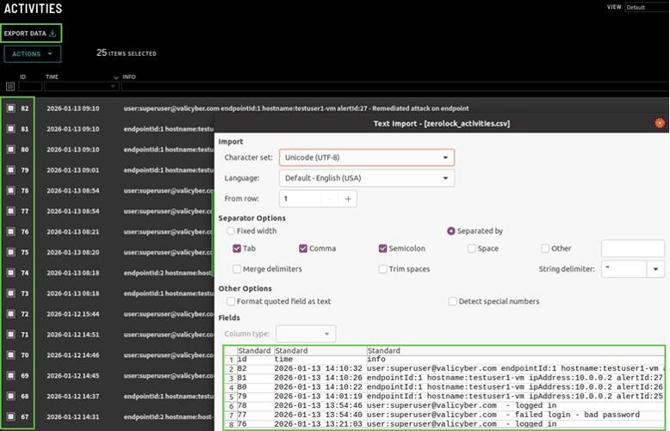
Export Data: Activity logs may be exported as .CVS file format using the Export Data tab. After selecting multiple entries in the Activities tab, the user clicks EXPORT DATA, generating a .csv file. The file is then opened in a spreadsheet tool using tab and semicolon delimiters.
Each row includes a timestamp, user or endpoint ID, and a description of the action or alert. This export makes it easy to review activity history. These activity records may also be forwarded to a SIEM if one is configured in the System Settings.
Actions menu: The Actions menu allows administrators to select multiple or all activity entries within the Activities tab and delete them. This is useful for clearing out old logs after they've been reviewed or exported, helping keep the activity feed organized and relevant. Table filtering is available to help narrow down the information displayed and improve readability.
-
- Manage Endpoints
The Endpoints page in ZMC is your control center for managing all protected systems. It offers a unified overview of endpoint status and tools for targeted action on an endpoint.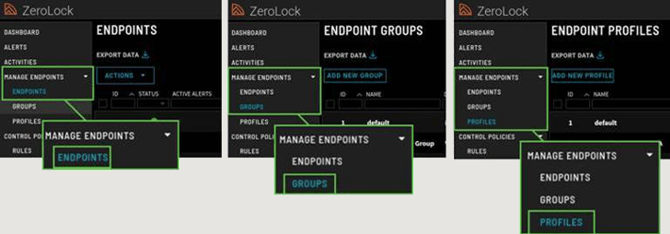
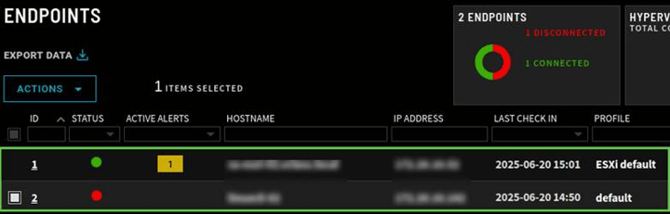
- Endpoints: Displays all monitored systems with columns for information such as Endpoint ID, Status, Active Alerts, Hostname, IP address, last contact (check-in) time, and Agent version.
-
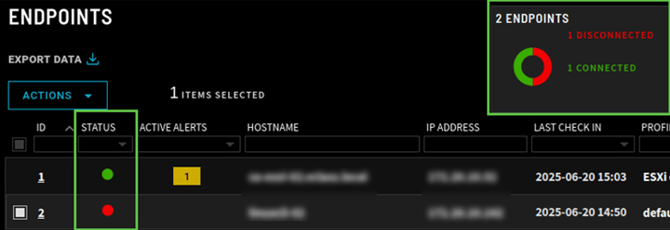
Visual Status Indicators: Each endpoint features status icons
-
GREEN - Connected
-
BLUE - Connected but in alert-only mode
-
RED - Offline and unprotected
-
YELLOW - Connected but unprotected. Generally used for quick operational insight.
-
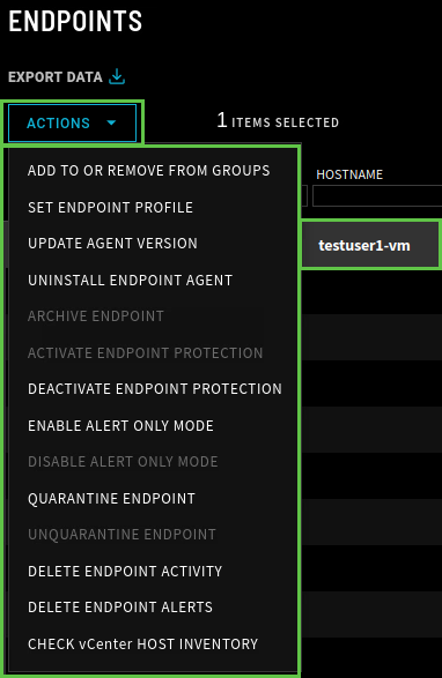
- Actions menu: Select one or more endpoints to access a dropdown with management options like:
- Set Endpoint Profile
- Archive Endpoint
- Activate Endpoint Protection
- Deactivate Endpoint Protection
- Enable Alert Only Mode
-
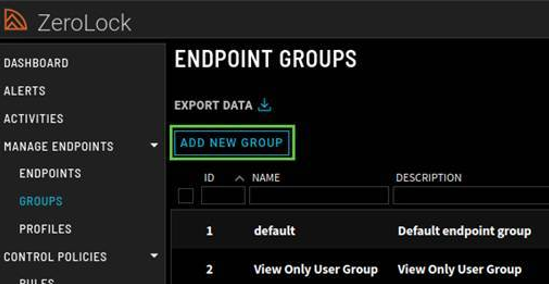
- Endpoint Groups: Within Endpoint Groups, administrators can manage access and visibility across users and endpoints. They can assign specific user roles and feature-level permissions. Additionally, the Add New Group option allows for easily creating additional groups.
-
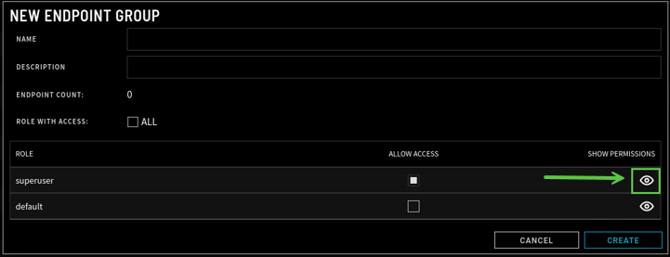
The New Endpoint Group window in the ZMC allows administrators to create and define an Endpoint Group by entering a name and description, view the current endpoint count, and assign access to specific user roles.
Access can be granted individually by selecting checkboxes next to each role or all at once using the “All” option. The eye icon next to each user role lets administrators configure detailed permissions before finalizing. For example, click the eyeball for the Superuser role.
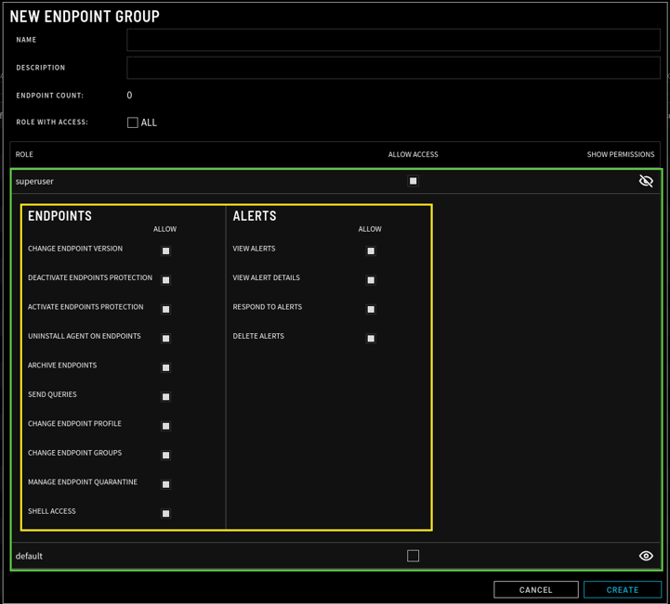
The permissions highlighted below define what actions a Superuser can perform within an endpoint group. Together, these permissions give the Superuser role complete administrative and response capabilities, making it suitable for trusted administrators who require full visibility and control over both endpoints and security alerts.
-
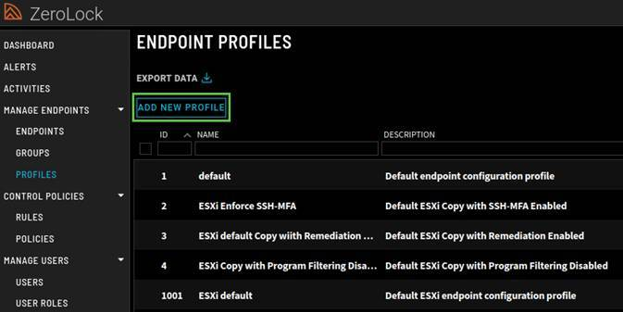
- Endpoint Profiles: In this section, administrators use Endpoint Profiles to define how ZeroLock agents behave on protected endpoints. These profiles control various security and system settings, such as enabling or disabling protections, assigning response policies, configuring logging behavior, managing cache settings, and adjusting SSH options. Endpoint Profiles ensure that endpoints follow a consistent security policy based on their assigned profile.
Administrators can tailor different profiles to meet the needs of specific environments or groups of machines. The Add New Profile option allows for the easy creation of custom profiles, making it simple to adapt ZeroLock protection to a wide range of use cases.
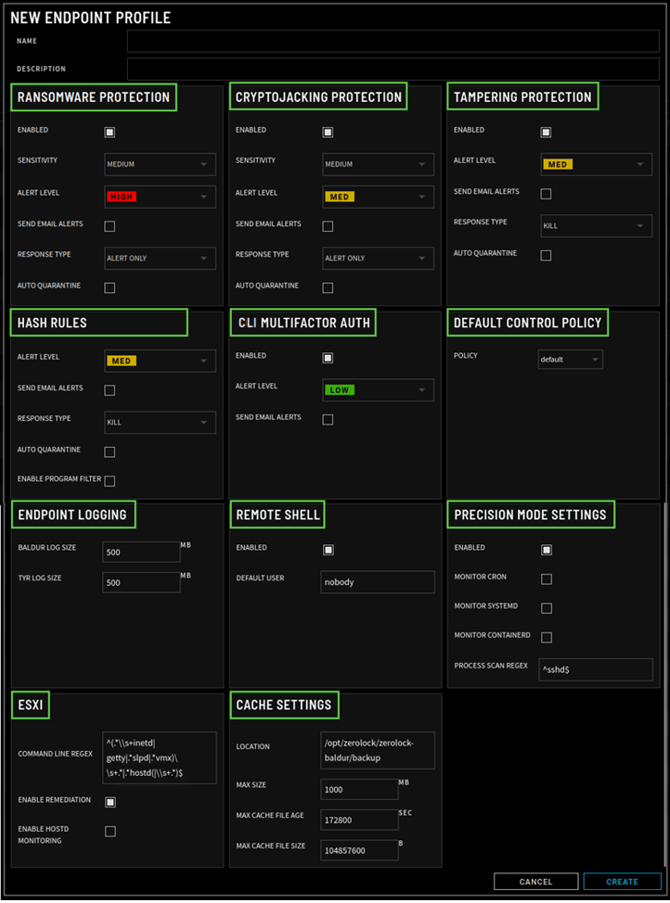
The New Endpoint Profile window provides administrators with a centralized interface to create and customize how ZeroLock agents function across protected endpoints. It brings together eleven key operational categories ranging from threat protection and access control to logging, remediation, and system monitoring into a single, streamlined view.
This allows administrators to define and enforce consistent, policy-driven configurations that align with the organization’s security posture. By standardizing these settings across the environment, administrators can ensure reliable protection, easier management, and faster response to threats.
-
Ransomware Protection: Detects and responds to ransomware behavior identified in the monitored processes (e.g., file encryption); configurable alert levels, sensitivity, responses (Alert Only, Suspend, Kill, Remediate), email alerts, and, optionally, auto quarantine.
-
Cryptojacking Protection: Monitors for behaviors associated with unauthorized cryptocurrency mining, having the same settings and controls as Ransomware Protection.
-
Tampering Protection: Guards against modification attempts to the ZeroLock Agent files and Canary lockdown rules; similar to ransomware settings but excludes sensitivity.
-
Hash Rules: Allows or blocks specific executables based on SHA256 hashes; includes settings for alert level, email alerts, response action, auto quarantine, and program filtering.
-
SSH Multifactor Auth: SSH Multi-Factor Authentication lets you restrict SSH access to systems protected by ZeroLock and, optionally, require two-factor authentication for user logins.
-
Default Control Policy: Specifies the Lock Down rule policy applied to secure the associated endpoints, selected from predefined control policy options.
-
Endpoint Logging: Configures the size limits for internal agent logs (Baldur and Tyr).
-
Remote Shell: Enables/disables remote shell access via the Zerolock Management Console and defines the restricted default user for remote commands.
-
Precision Mode Settings: Enables targeted process monitoring on non-ESXi Linux systems. Administrators can choose to monitor or exclude specific processes, including system processes such as cron, systemd, and containerd, and can define Regex filters to specify which processes to include or ignore.
-
ESXi: Uses a Command Line Regex to list the processes that are monitored on the ESXI endpoint, and which processes can be included or excluded. Remediation and hostd monitoring can be enabled here.
-
Cache Settings: Defines where and how long endpoint file changes are cached for remediation. Includes settings for storage location, overall cache size, per-file size limits, and file age limits.
-
- Endpoints: Displays all monitored systems with columns for information such as Endpoint ID, Status, Active Alerts, Hostname, IP address, last contact (check-in) time, and Agent version.
- Control Policies
Control Policies in ZeroLock enforce and automate security actions at the system level through assigned Lockdown rules. They continuously monitor system behavior, including program execution, file access, and network activity, to detect suspicious or unauthorized activity. When defined conditions are met, policies can automatically block threats, generate real-time alerts, and trigger responses such as terminating malicious processes.
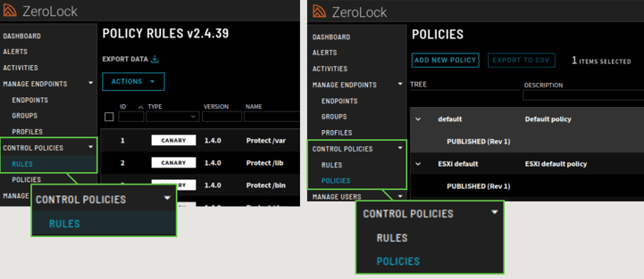
The Control Policies section is organized into two parts: Rules and Policies.
- Rules
ZeroLock implements seven (7) rule types within its Control Policies to enforce endpoint security, each designed to monitor and restrict specific system behaviors.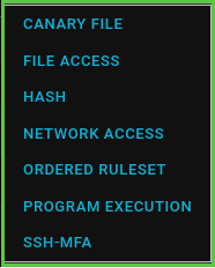
The seven rule types are:- CLI-MFA: Enforces multi-factor authentication for SSH sessions.
- Hash: Allows or blocks executables by their SHA‑256 hash; ideal for preventing unwanted applications.
- Canary File: Deploys decoy files; any access to these mimics a potential ransomware action.
- File Access: Regulates file operations (read/write/delete) on protected files.
- Network Access: Controls which processes can initiate network connections.
- Program Execution: Manages which executables, scripts, and processes are permitted to run.
- Ordered Ruleset: A compound rule that evaluates multiple rules in sequence (like a firewall) - once a match is found, further rules in that set are skipped.
- Policies
In ZeroLock, a policy is a collection of one or more lockdown rules that define how the agent monitors, blocks, or responds to specific behaviors on an endpoint. Policies are the foundation of ZeroLock enforcement and determine how protections—such as blocking unauthorized access, enforcing file system integrity, or requiring MFA for SSH access—are applied.
The ZeroLock Management Console (ZMC) includes two default policies:
- Default Policy – Applied to Linux endpoints and editable by administrators.
- ESXi Default Policy – Applied to ESXi endpoints and not editable.

- Policy Lifecycle
Policies move through two lifecycle states:
- Draft – Used for tuning and preparing a rule set before it is published and enforced.
- Draft policies do not impact production systems and are not enforced, meaning they do not monitor activity, block actions, or generate alerts on live endpoints.
Instead, they serve as a controlled workspace where ZMC administrators can safely review rules, adjust enforcement behavior, modify rule order, and align the policy with any new alerts that have been generated.
- Draft policies do not impact production systems and are not enforced, meaning they do not monitor activity, block actions, or generate alerts on live endpoints.
- Published – Represents the actively enforced rule set used in production.
-
Once changes in a draft policy are validated, the policy must be promoted, which publishes it and makes it eligible for enforcement. If a published policy does not perform as expected, administrators can revert to a previously published version, providing a safe and reliable rollback mechanism.
-
- Draft – Used for tuning and preparing a rule set before it is published and enforced.
-
Applying Policies to Endpoints
-
Promoting a policy does not automatically apply it to endpoints. After promotion, administrators must update the associated Endpoint Profile to reference the newly published policy version. Once the profile is updated, all endpoints assigned to that profile will begin enforcing the updated rules.
Policies are created and managed independently from endpoints and are assigned through Endpoint Profiles. This design allows policies to be reused across multiple systems and environments.
-
-
Creating a New Policy
-
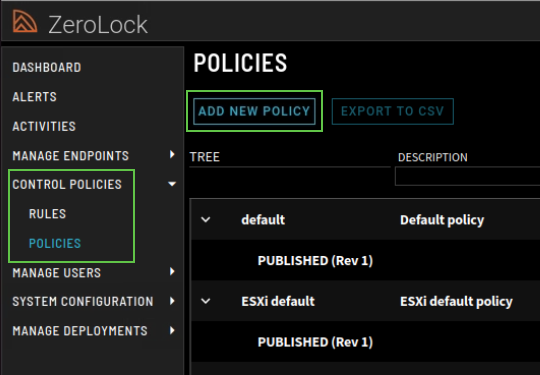
To create a new policy, navigate to the Policies view and select Add New Policy. This structured workflow supports safe testing, controlled rollout, easy rollback, and environment‑specific tuning while maintaining strong security and operational flexibility.
Policies are created independently and later assigned to endpoints through Endpoint Profiles. This structure makes them reusable and easy to manage across multiple systems. To create a new policy, users can click Add New Policy.
When adding a new policy, you will be prompted to configure the Policy Name, Description, and what rules are to be applied by using Add Rules. Once the policy is saved, you can then assign it to any endpoint by linking it through an endpoint profile.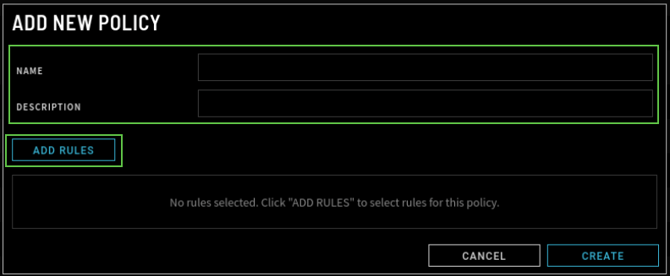
-
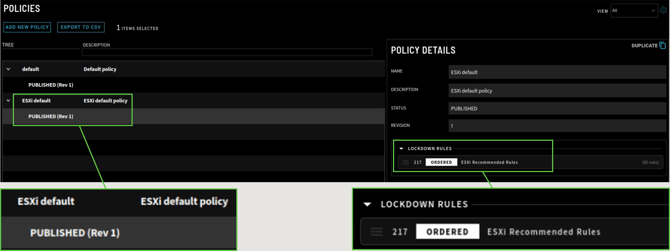
Policy Selection: By selecting a policy in the ZMC, you can view its name, description, and all associated rules organized by category (e.g., Lockdown Rules, SSH Access, Hash Rules). Default policies may be duplicated but not deleted. Policies you create may be duplicated, edited, and deleted.
-
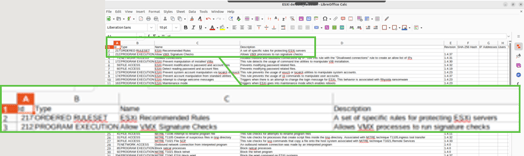
Export to CSV: ZeroLock administrators can export a selected ruleset to a CSV file. This export provides a clear, portable record of the rules currently applied to an endpoint and is useful during audits to verify that the configuration aligns with organizational security requirements and objectives.
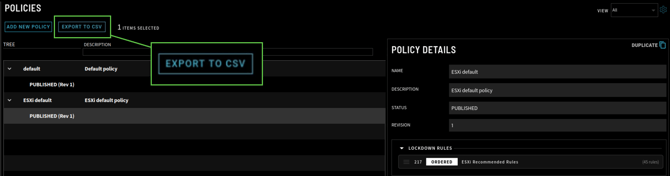
The export includes the policy name, the ordered ruleset applied to that policy, the Rule ID, Type, Rule Name, Description, and Revision for each rule assigned.
-
- Rules
- Manage Users
The Manage Users section in the ZMC empowers administrators to centrally manage all aspects of user access and identity within the system. It is divided into three key subsections: Users, User Roles, and Tenants, each designed to streamline how individuals are added, assigned specific permissions, and associated with organizations or business units. Through this section, administrators can create and manage user accounts, define role-based access controls, and configure tenant-specific settings such as SSO enforcement and domain-level policies, ensuring secure, organized access throughout the environment.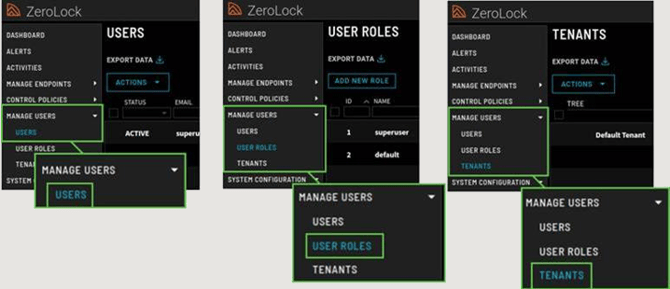
- Users
The Users subsection is where administrators manage individual user accounts, either by selecting a current user or creating a new user in the ZeroLock Management Console.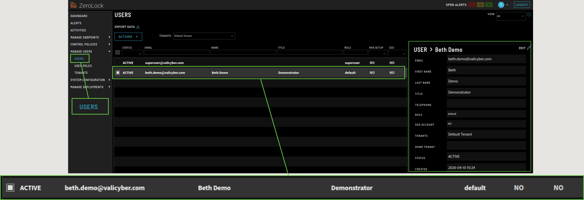
The Actions menu provides administrators with eight essential options for managing user accounts and access configurations.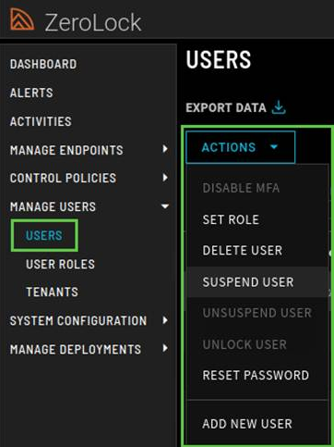
- Disable MFA: Turns off multi-factor authentication for the selected user.
- Set Role: Assigns a new user role that defines access permissions.
- Delete User: Permanently removes the user account from the system.
- Suspend User: Temporarily deactivates the user’s account and access.
- Unsuspend User: Reactivates a previously suspended user account.
- Unlock User: Clears a locked account after failed login attempts.
- Reset Password: Creates a temporary password for the user to regain account access.
- Add New User: Creates a new user with basic contact and authentication details.
- User Roles
The User Roles section allows administrators to define what users can see and do within the ZeroLock Management Console. Roles are permission-based profiles that control access to specific features and actions.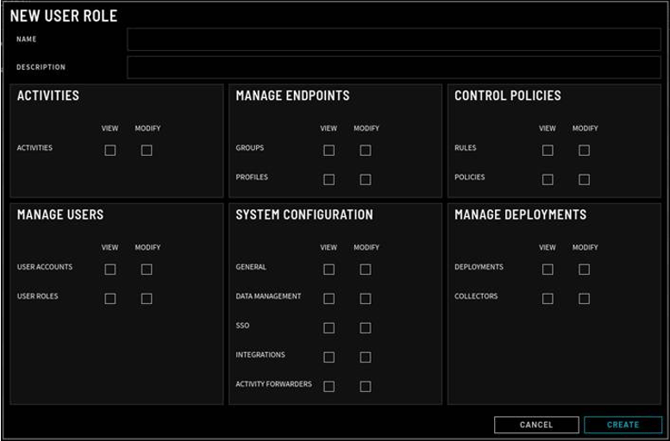
User Roles can be added by clicking Add New Role in the User Roles window.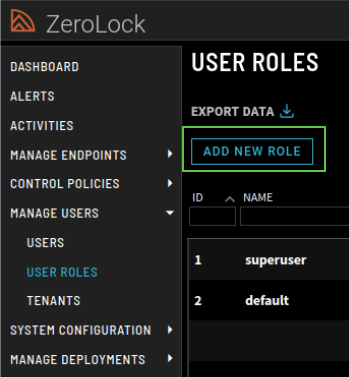
By creating custom roles, like the ZeroLock View Only role shown here, or using the default ones (like superuser), you can tailor access based on job function or responsibility. After selecting a user role, you can choose to Duplicate, Edit, or delete the account using the available action buttons.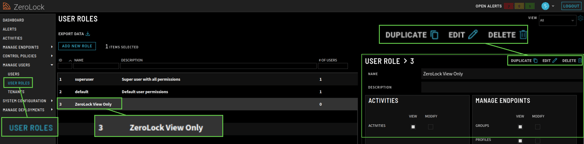
User roles are assigned to users during account setup or modification, ensuring consistent and secure role-based access across the environment. - Tenants
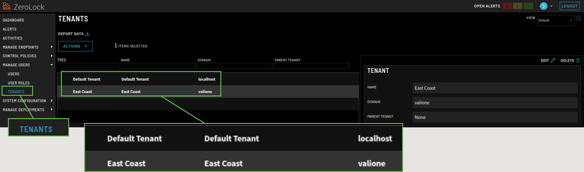
In the ZMC, a tenant represents a distinct organizational unit or customer environment within a multi-tenant deployment. Tenants allow you to logically separate users, endpoints, and configurations, ensuring data isolation and administrative control across different groups.
Each tenant can have its own:
- SSO configuration
- Domain settings
- User and role assignments
- Lockdown Rules
- Endpoint Profiles
This structure is especially useful for Managed Service Providers (MSPs), enterprises with multiple departments, or organizations managing separate client environments within a single ZMC instance.
-
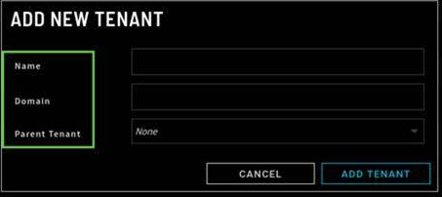
Action Menu -- Add New Tenant: When adding a new tenant, you assign it a name, specify its domain, and optionally select a parent tenant if it’s part of a nested structure.
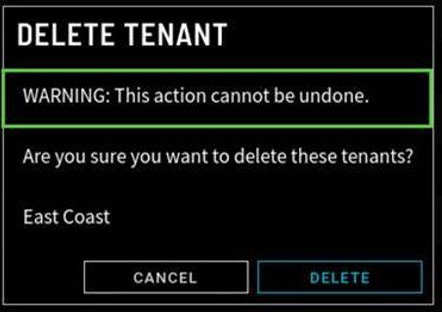
- Delete Tenant: This action deletes a tenant and cannot be undone.

- Add New Tenant: When adding a new tenant, you assign it a name, specify its domain, and optionally select a parent tenant if it’s part of a nested structure.
-
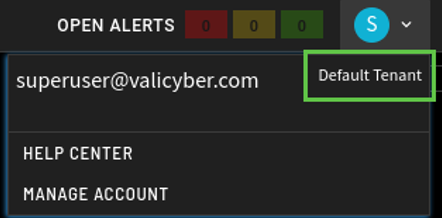
Once tenants are created, users with access to multiple tenants can view and switch between them. The currently selected tenant is shown in the user dropdown at the top-right corner of the interface.
-
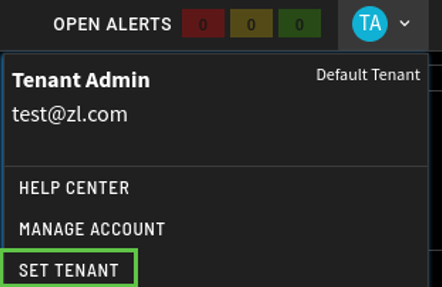
If a user has permission to manage or view more than one tenant, they can select a different tenant from the user dropdown menu to access its associated data and settings.

- Users
- System Configuration
The System Configuration tab in the ZMC provides centralized access to six (6) core areas. This tab is essential for defining how the environment is organized, secured, and managed. It lays the foundation for access control, consistent protection policies, and system behavior, ensuring ZeroLock operates securely and efficiently.
- Activity Forwarders
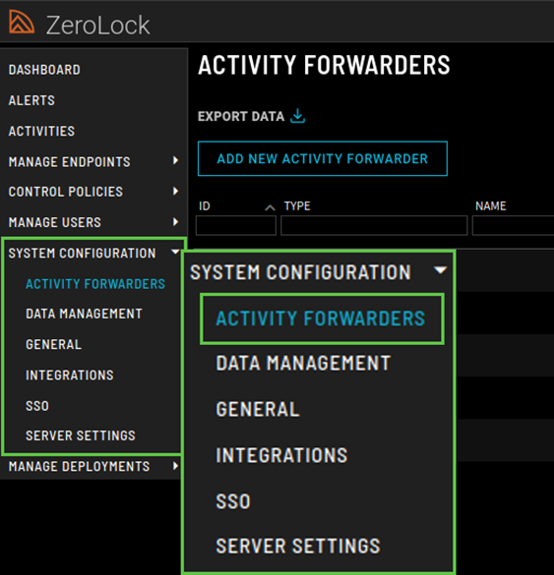
ZeroLock provides seamless integration with external Security Information and Event Management (SIEM) platforms through its Activity Forwarder feature. This feature enables ZeroLock to securely transmit activity logs, including alerts, user actions, and endpoint activity events from protected endpoints to a centralized logging or monitoring system.
By forwarding this data, organizations gain enhanced visibility, improved event correlation, and support for compliance requirements. You also have the flexibility to send only alert data, if preferred, or filter alerts by severity level, ensuring that only the most relevant information is transmitted.
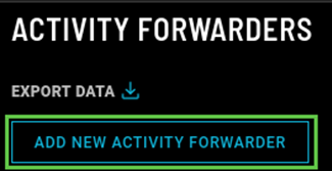 Add New Activity Forwarder: By configuring an Activity Forwarder, administrators can ensure that ZeroLock security telemetry is included alongside other infrastructure and security data, enabling faster investigation, improved incident response, and alignment with organizational monitoring standards.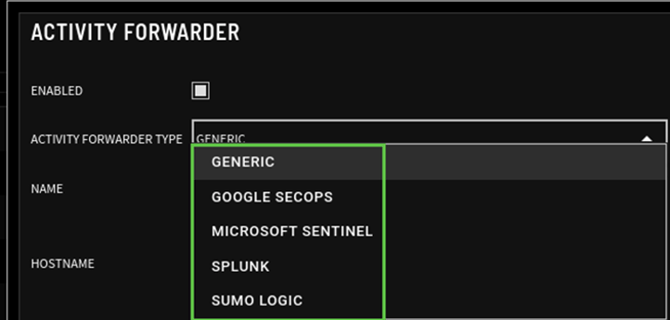
- Pre-Defined Forwarder Types: ZeroLock includes five (5) predefined forwarder templates for commonly used SIEM platforms. These templates simplify integration by providing built-in configurations for:
- Generic
- Google SecOps
- Microsoft Sentinel
- Splunk
- Sumo Logic
Example - Activity Forwarder Configuration (Microsoft Sentinel)
This screen shows the configuration required to integrate ZeroLock with Microsoft Sentinel. When this forwarder type is selected, ZeroLock sends activity and alert data directly to an Azure Log Analytics workspace used by Sentinel.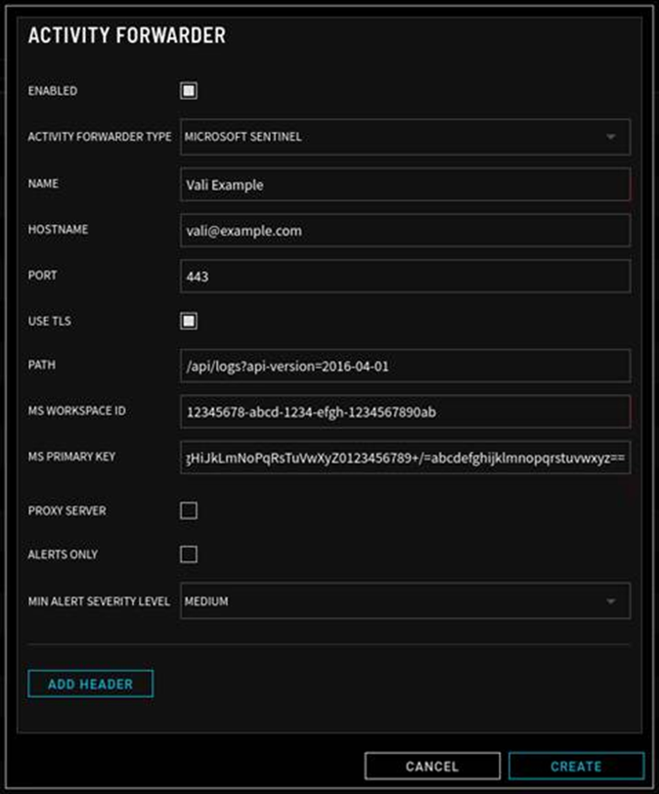
- Data Management
This section provides options to manage backups and control how long data is retained within the console.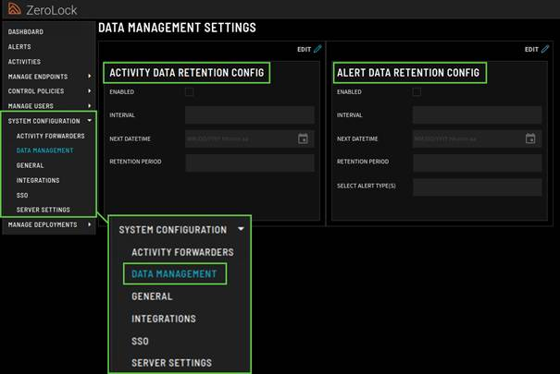 It includes two key configurations:
- Activity Data Retention Config: Lets admins schedule and manage the retention period for activity logs to control storage and compliance.
- Alert Data Retention Config: Provides options to schedule and configure how long alert data is kept before being purged.
- General
This section includes two (2) main configuration areas that affect how the console behaves and displays information.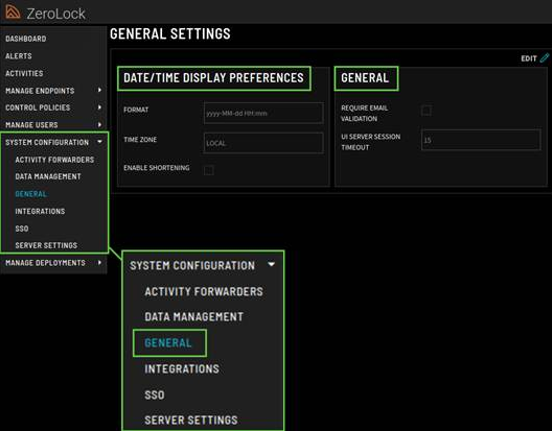
- Date/Time Display Preferences: Enables customization of timestamp formats (e.g., ISO vs. slash format), time zones, and “time ago” display options.
- General: Covers broader console settings, such as requiring email validation and configuring session timeout durations.
- Integrations
This section allows you to configure how ZeroLock connects with external services.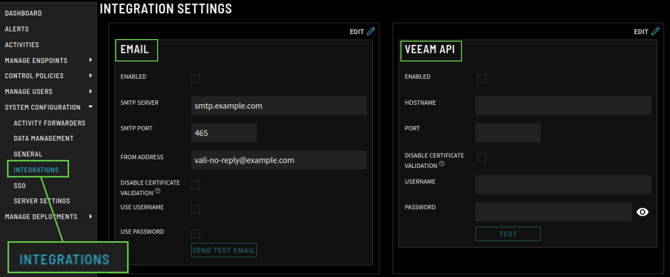 There are two (2) main integration types:
- Email: Configures SMTP settings, including server, port, credentials, TLS, “From” address, and a test‑email button to validate email alerts.

- Veeam API: Used to set up integration with the Veeam backup infrastructure by defining host, port, credentials, and includes a test connection feature.
- Email: Configures SMTP settings, including server, port, credentials, TLS, “From” address, and a test‑email button to validate email alerts.
- SSO
This section allows you to configure SAML-based SSO settings for centralized authentication. It consists of: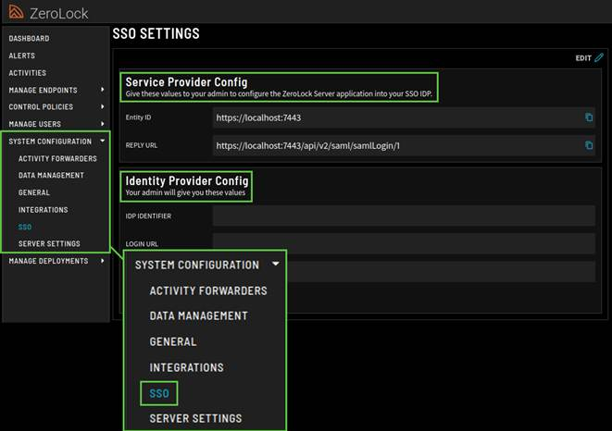
- Service Provider Config: Defines the SAML Service Provider settings used for Single Sign-On, including entity ID and Assertion Consumer Service URLs for managing authentication.
- Identity Provider Config: Stores settings for the SAML Identity Provider used by the console, such as issuer, and the login/logout URLs and certificate for SSO.
- Server Settings
The highlighted sections show two key configuration areas within Server Settings that control how the ZeroLock Management Console operates.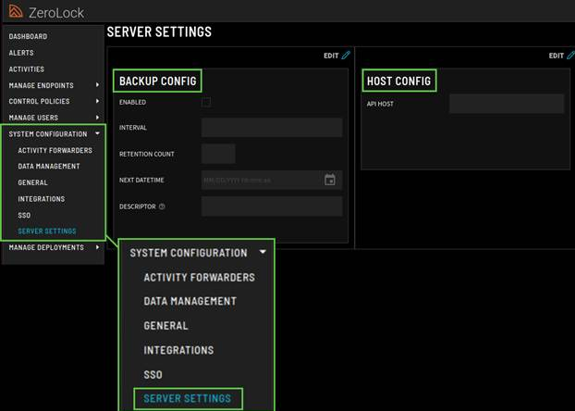
- Backup Config: This section is used to configure automated backups of the ZeroLock database. Administrators can enable scheduled backups, define the backup interval, set how many backups are retained, and specify the next run time. The descriptor field helps identify the purpose of the backup. This ensures configuration and security data can be recovered if needed.

- Host Config: This section defines the API host address used by the ZeroLock Management Console. This value should be set to the IP address of the ZMC. The ZeroLock API service runs alongside the ZMC on the same system, so the API host uses the same IP address as the ZMC. A correct configuration is required for proper system communication and integrations.
- Backup Config: This section is used to configure automated backups of the ZeroLock database. Administrators can enable scheduled backups, define the backup interval, set how many backups are retained, and specify the next run time. The descriptor field helps identify the purpose of the backup. This ensures configuration and security data can be recovered if needed.
- Activity Forwarders
- Manage Deployments
The Manage Deployment tab in the ZMC offers two primary configuration options: Collectors and Deployments. It also provides access to the signed ESXi component or Linux agent, along with detailed installation instructions. These features enable administrators to deploy ZeroLock agents in a manner that aligns with their specific environment and security requirements.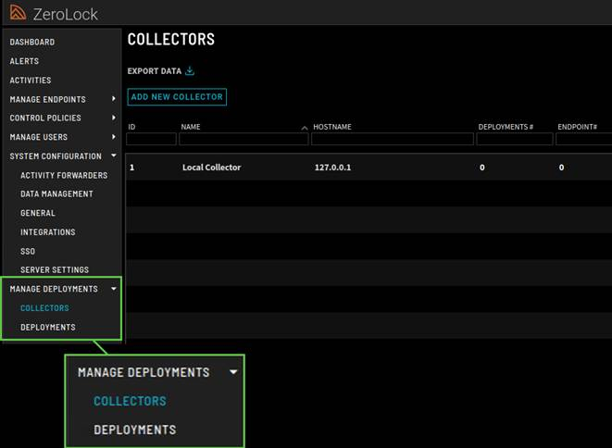
- Collectors
This screen displays the list of Collectors configured in the ZMC. Collectors are responsible for receiving activity and alert data from endpoints before it is stored or forwarded.The collector hostname or IP address is the same system where the ZMC is running. In other words, endpoints send their data directly to the ZMC.
Each collector entry shows:
- Name: A descriptive label for the collector.
- Hostname: The IP address or hostname of the ZMC.
- Deployments #: The number of deployments using the collector.
- Endpoint #: The number of endpoints assigned to the collector.
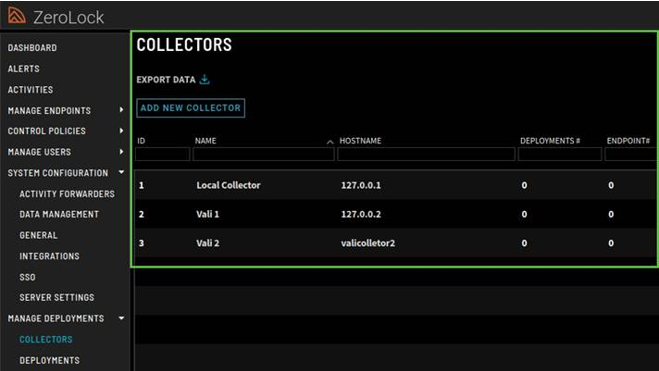
In production environments, additional remote collectors can be deployed to scale data ingestion or support a distributed architecture.
- Collectors
NOTE: To delete a tenant, it must have no users, no connected endpoints, and no child tenants.
-
- Deployments
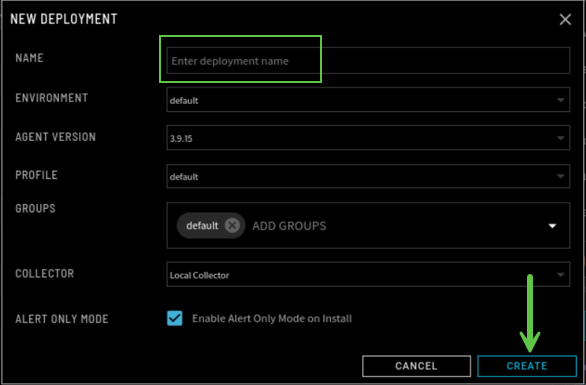
This window provides granular control over how ZeroLock agents are deployed and initially enforced. Administrators select the appropriate Environment types of default, ESXi, or Air‑Gapped based on the endpoint’s network connectivity and operational model. During deployment, the Agent Version, Endpoint Profile, and associated Endpoint Groups are defined to ensure the agent aligns with organizational security policies at install time.
Administrators can also enable Alert Only Mode on install, which allows the agent to evaluate activity against the assigned policy and generate alerts without blocking actions. Alert Only Mode is commonly used for new deployments or policy validation, enabling administrators to observe behavior, identify required rule adjustments, and fine‑tune policies before enforcement is enabled in production.
- Actions: From the action’s menu, ZMC administrators may upload a newer agent, add a deployment, or delete a deployment.
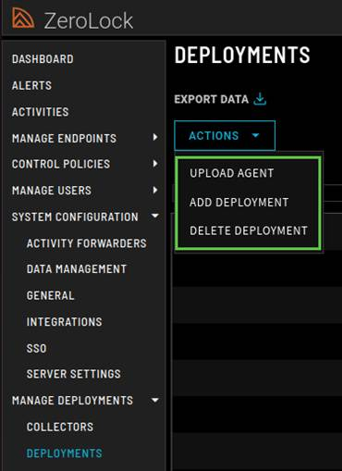
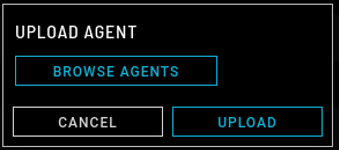
- Upload Agent: Used to upload a ZeroLock agent package to the Management Console so it can be deployed to endpoints. This allows administrators to manage agent versions centrally and ensure consistent installation across systems.
- Add Deployment: You can select a specific collector from the available list or use a single collector if only one is required. The Collector Address, which is the IP address or Hostname of the ZMC, defines where the agent sends its data and how it communicates with the ZeroLock Management Console.
- Delete Deployment: This option permanently removes a deployment from the ZeroLock Management Console.
- Upload Agent: Used to upload a ZeroLock agent package to the Management Console so it can be deployed to endpoints. This allows administrators to manage agent versions centrally and ensure consistent installation across systems.
- Actions: From the action’s menu, ZMC administrators may upload a newer agent, add a deployment, or delete a deployment.
- Deployments